The Matter Shop
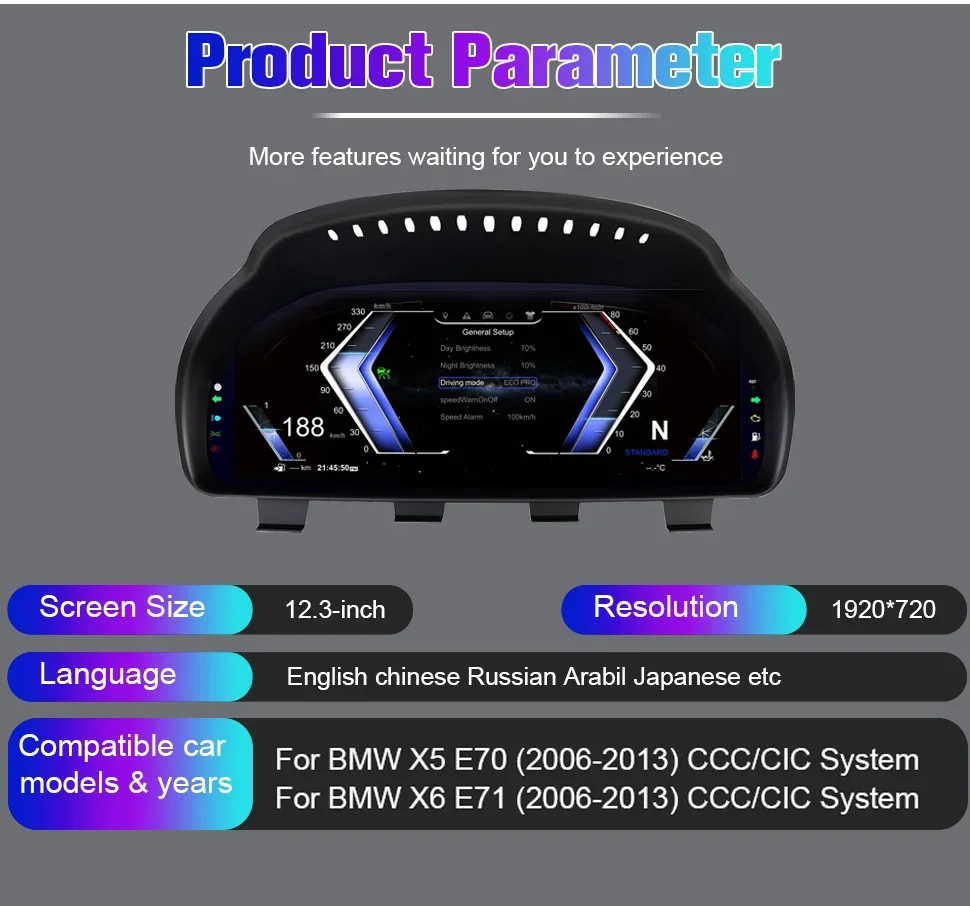
For BMW E70 X5 E71 X6 2006-2013 speedometer LCD Cluster Dashboard instrument panel HUD digital instrument
For BMW E70 X5 E71 X6 2006-2013 speedometer LCD Cluster Dashboard instrument panel HUD digital instrument
Couldn't load pickup availability
SPECIFICATIONS
Brand Name: Hustly
High-concerned chemical: None
Item Height: 20
Item Length: 40
Item Weight: 2KG
Item Width: 20
Origin: Mainland China

operating system: Linux 5.4
ROM:Emmc8GB
RAM:1.024GB
USB:USB 2.0
Screen resolution:1920*720
Working current:480mA
working valtage:9V-18V
Standby curent:< 3mA
working temperature:-20-75°C
Storage temperature:-40-85“C
Language support:Chinese, Engls h, Japanese, Japanese, Rus sian, Arabic, Spanish, Geman, Tarkiye, Korean, French, ltaly, Bulgarla, Portugal
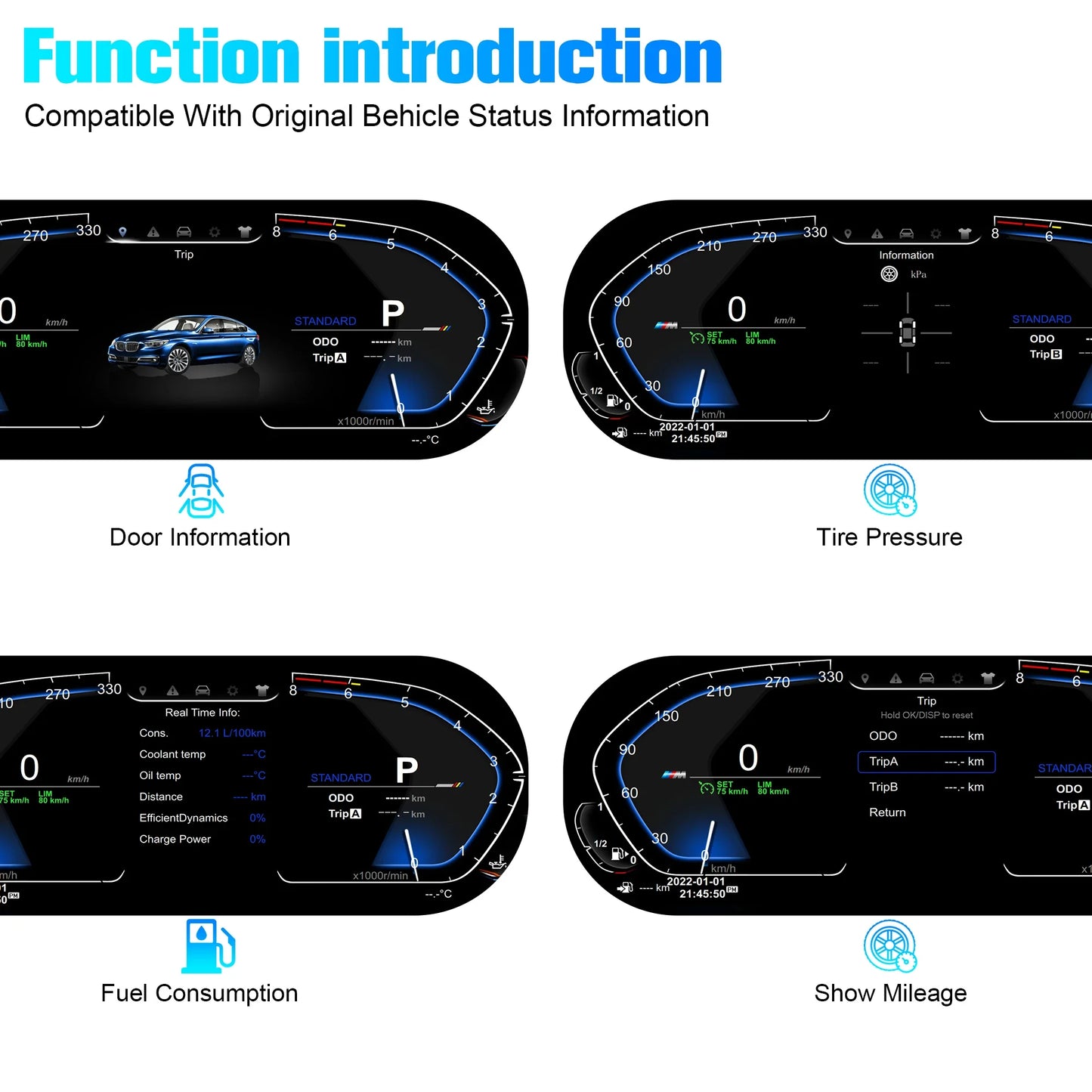
Original car functions:Supports all orginalcarfunctions
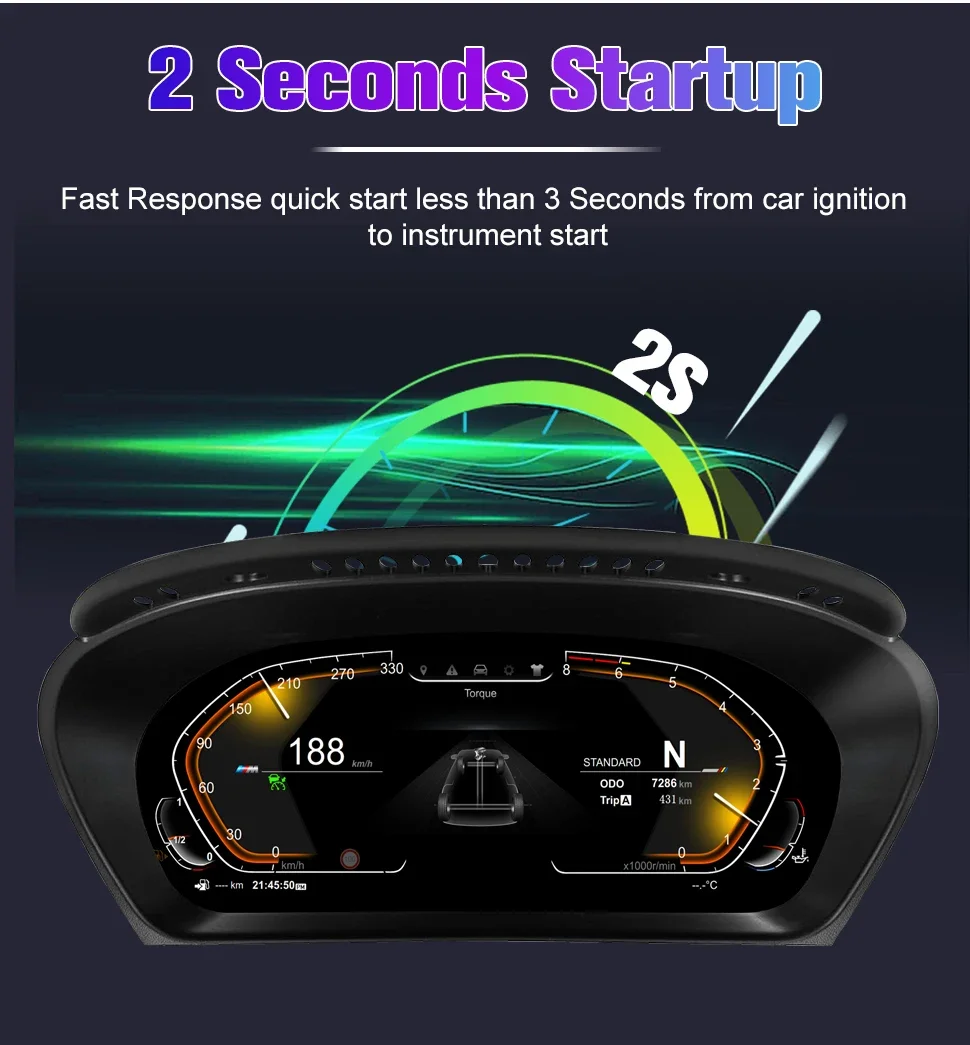
Support road sign display, speed limit, navigation direction
Can be changed to miles
1, We are a factory seller and loved by our customers, our goal is to constantly strive to innovate the hardware and software of car multimedia playback radio to provide you with a personalized experience. We offer free firmware, software, UI and GPS navigation map updates.
2, You can rest assured that all of our products undergo strict quality testing before shipment to ensure high quality.If you want to buy a large quantity, please add them to the shopping cart, please contact us and we will change the price for you!
3, receipt confirmation within 365 days, the product if there is a problem, within 15 days to support the free return for a refund, or direct replacement (need to contact customer service in advance, we provide 24-hour service).
4, if you are satisfied with our products or our service like, please give five stars.
5、We are not responsible for the return shipping cost caused by customs tax issues or other problems. If you have any questions, please feel free to contact our seller. About installation: we provide professional engineer technical guidance, installation manual and installation video.With our own overseas warehouses in France, Germany and Italy, you can order with confidence and guarantee the logistic time problem. Please let us know if you need it.

For BMW Series X5 E70 X6 E71 CCC CIC System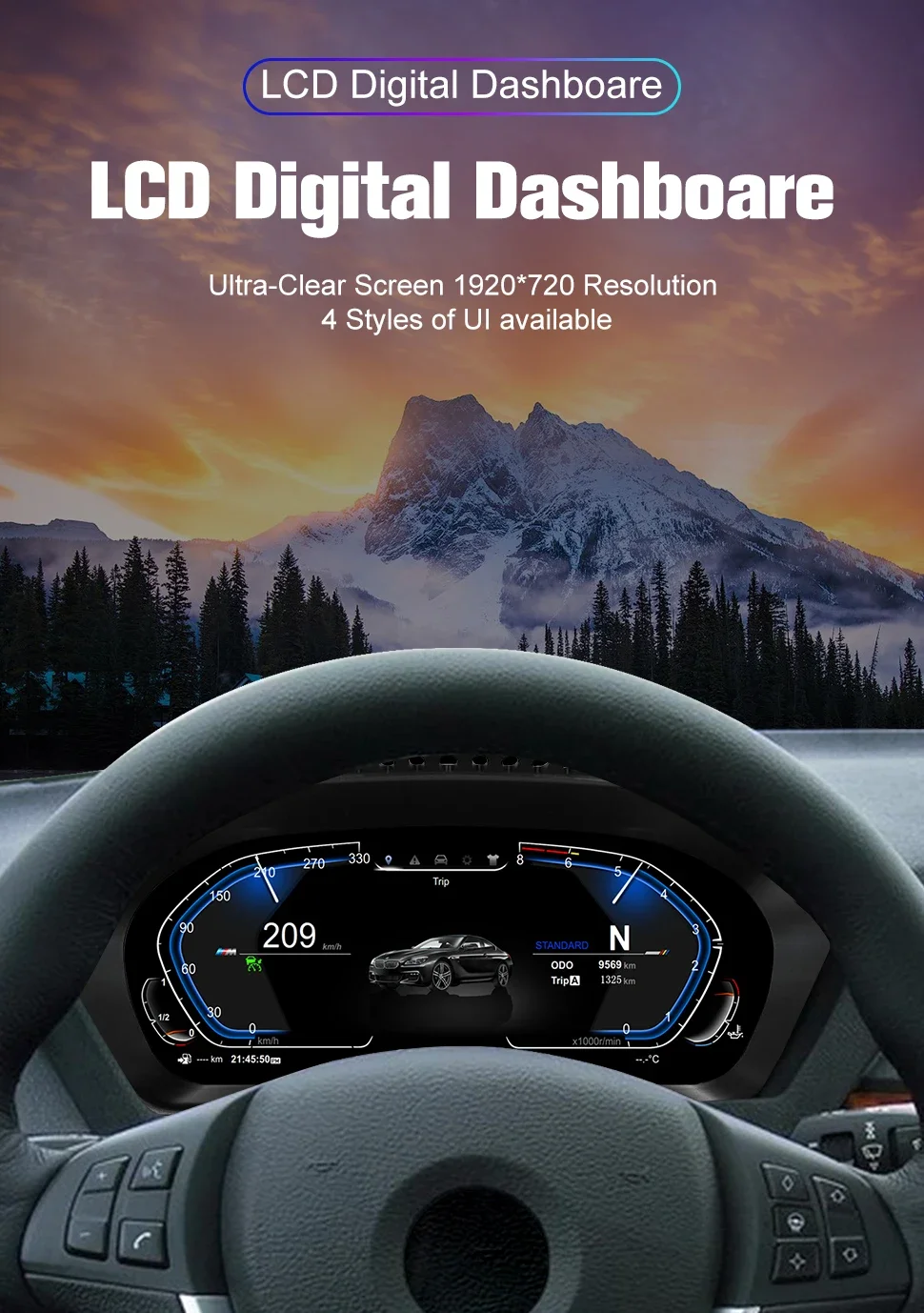
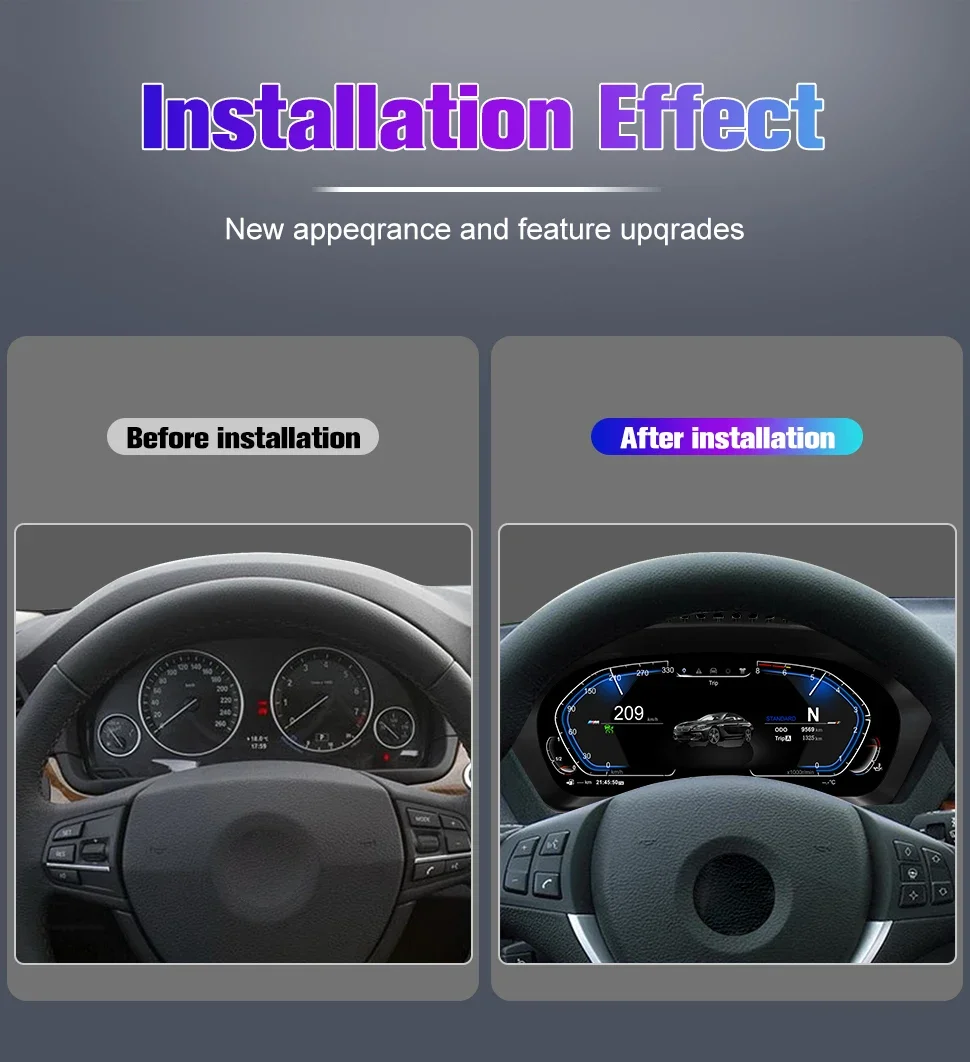
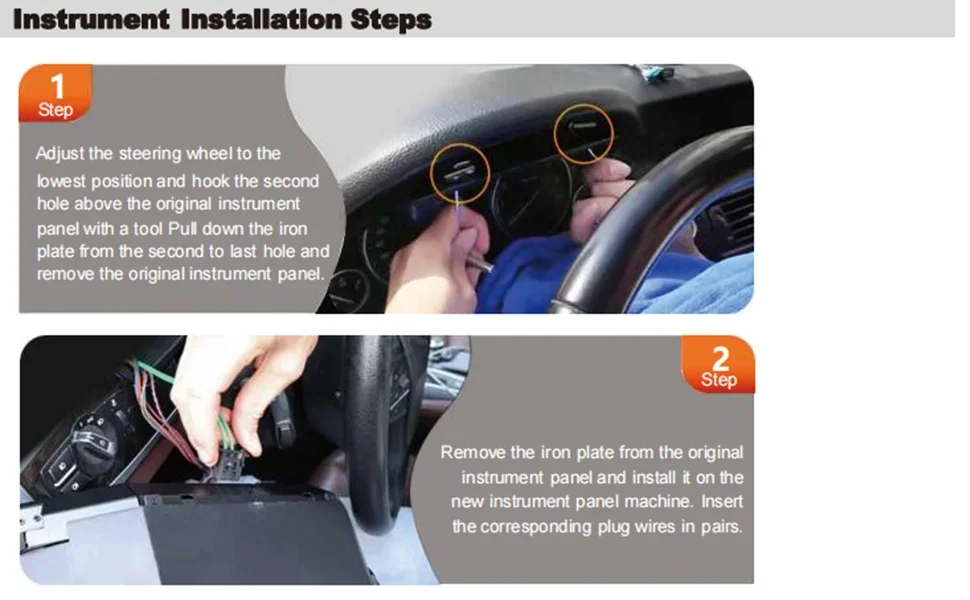
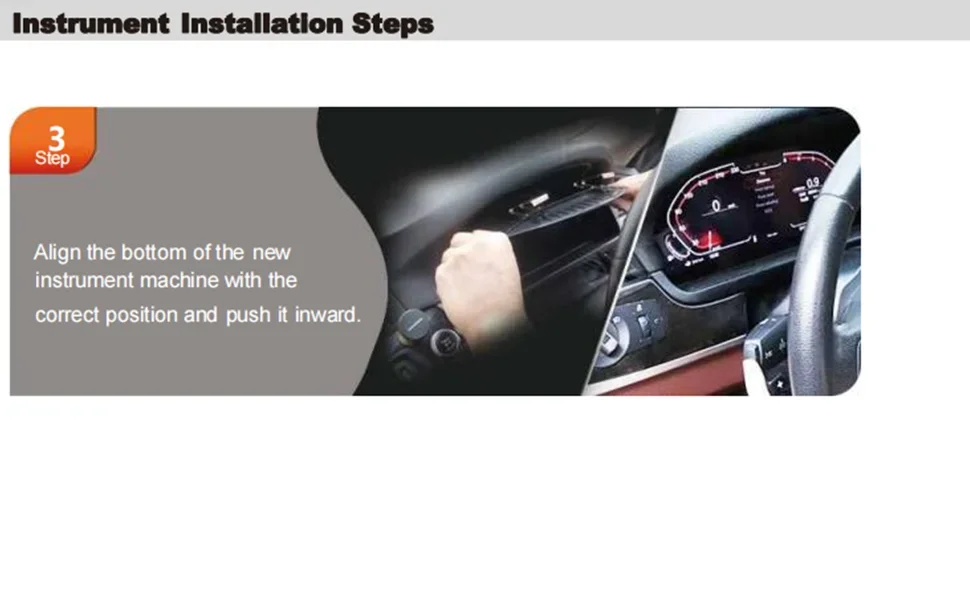
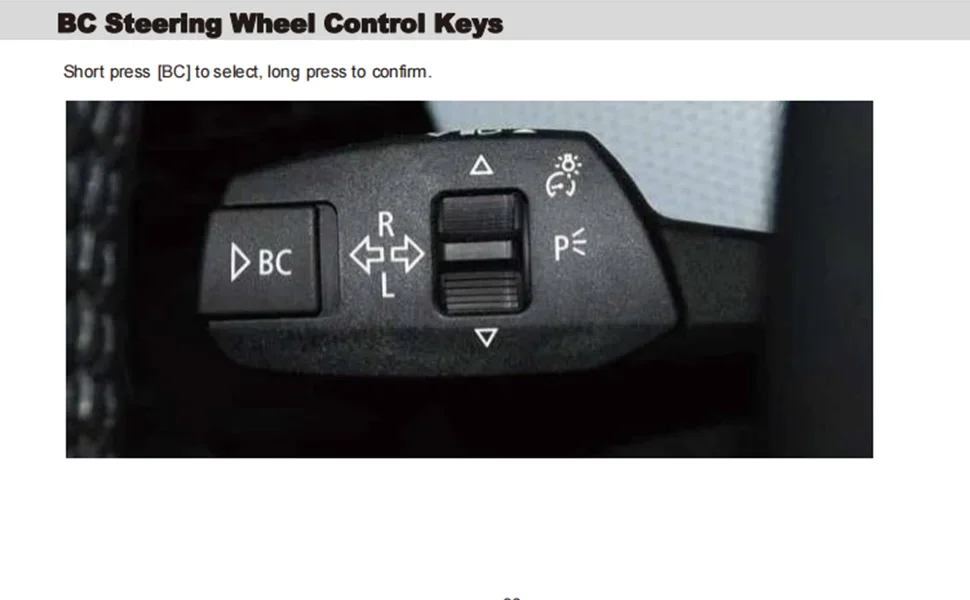
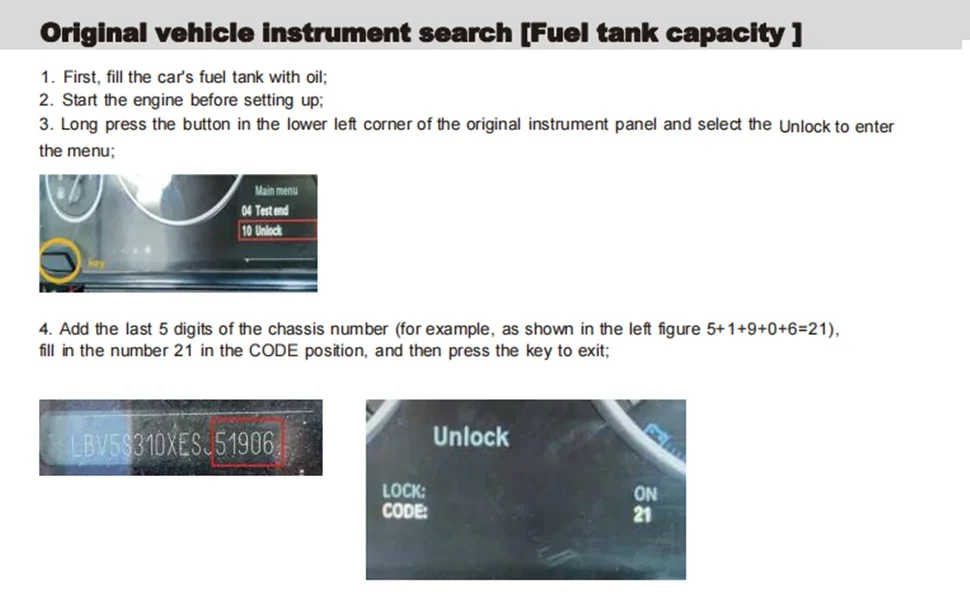
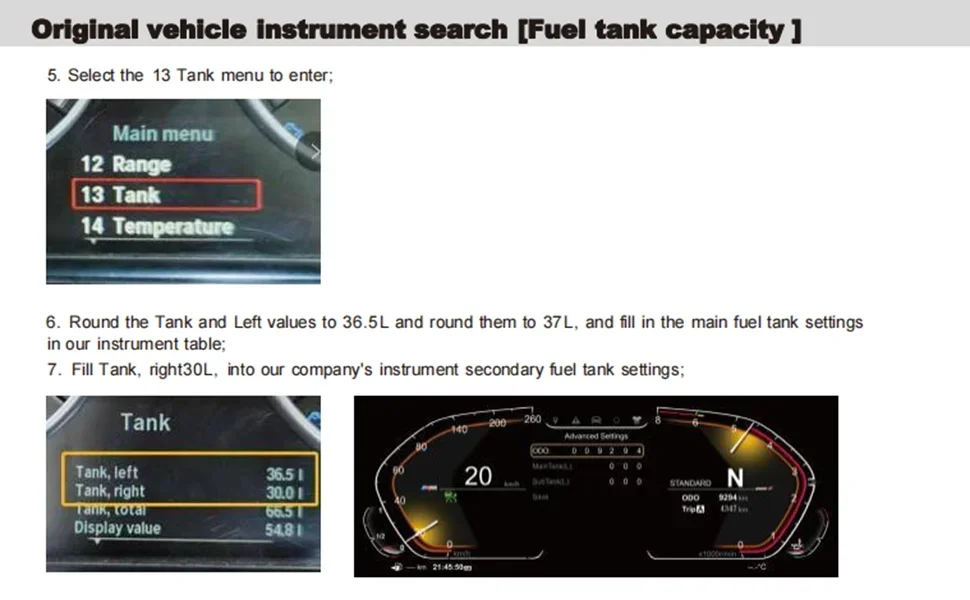
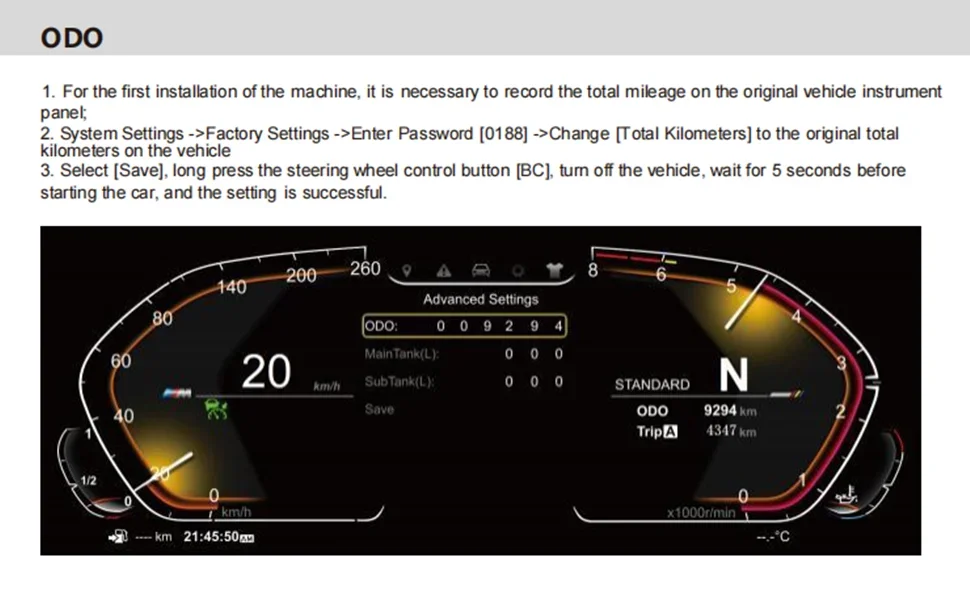
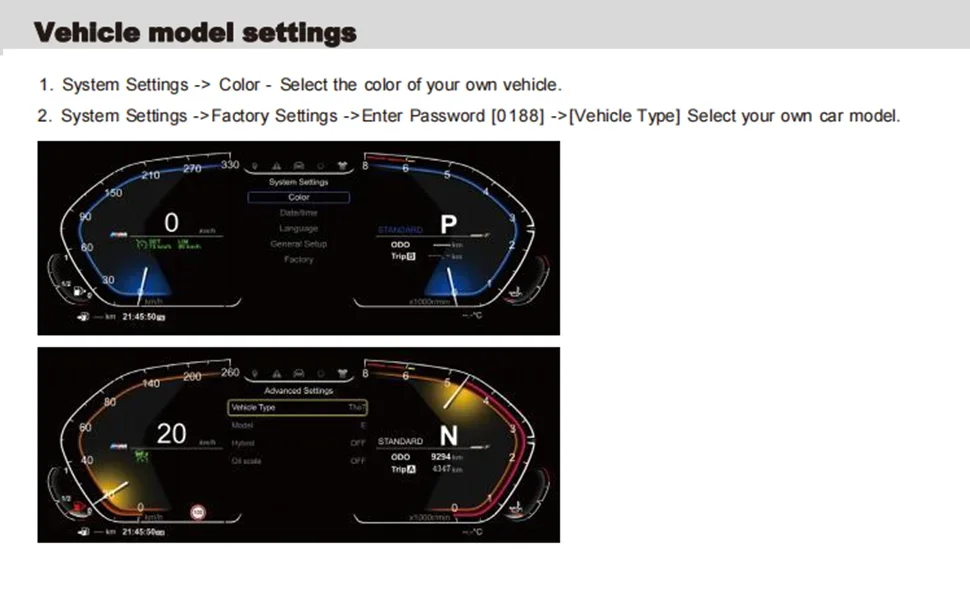
1. Installation steps
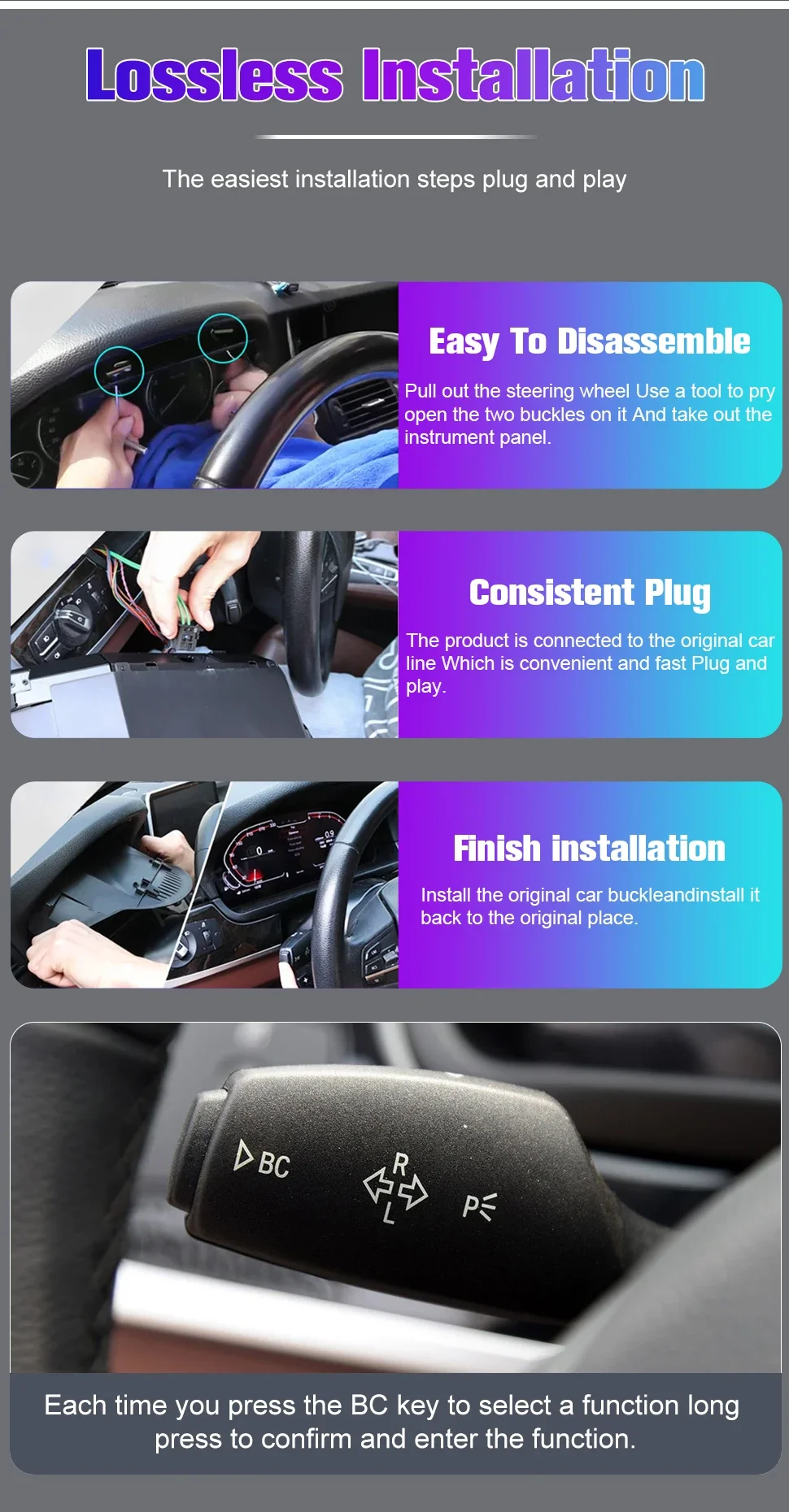
1. Disassemble the original car instrument
Tool preparation: 2 iron hooks (for removing the instrument housing) are required.
Procedure:
Use the iron hook to hook the iron brackets on both sides of the instrument, and gently pull outward to take out the original car instrument.
Separate the power cord and optical fiber line of the original car instrument.
2. Connect the new instrument harness
Wiring Instructions:
Power cable: Insert the power cord of the original car into the matching plastic shell interface (confirm the positive and negative pole matching).
Optical fiber cable: directly connected to the original vehicle optical fiber interface to ensure a stable connection.
2. System Setup Guide
1. Basic function settings
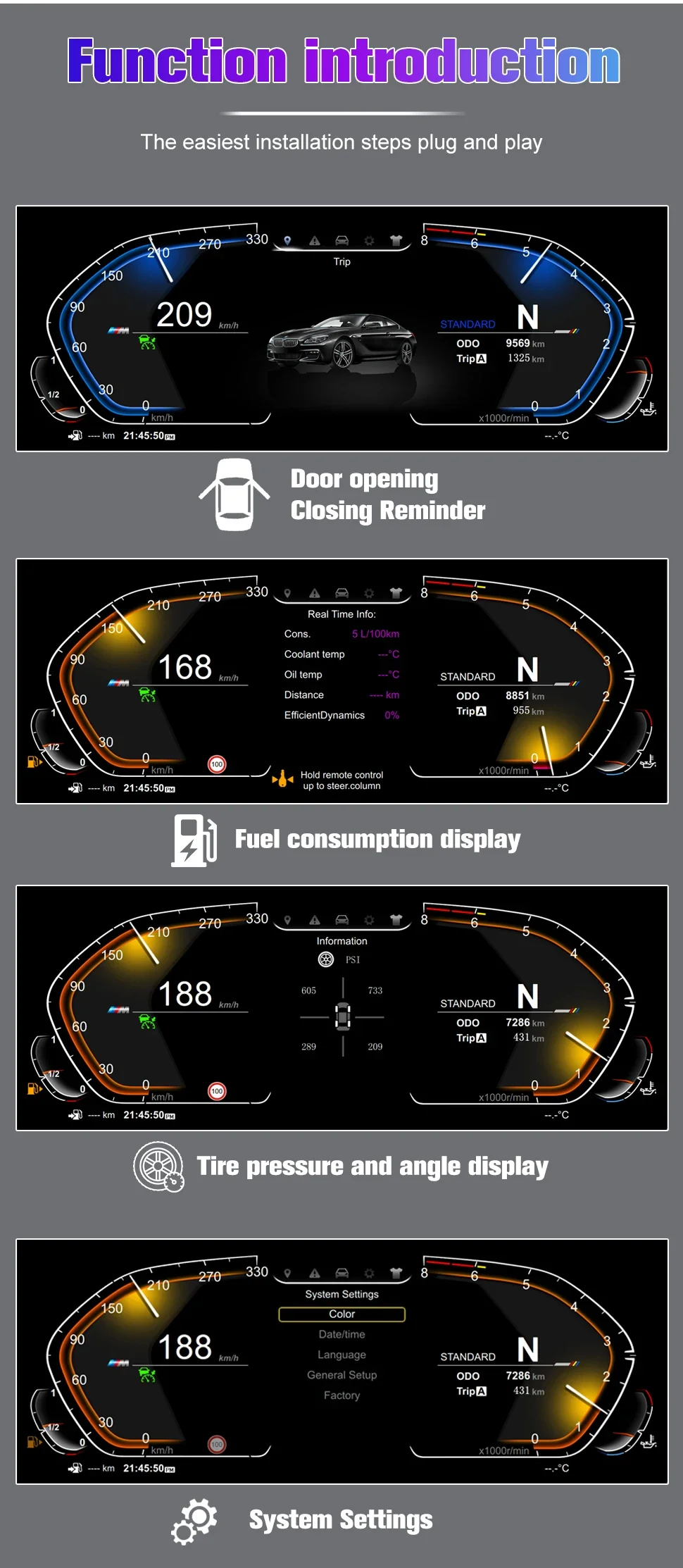
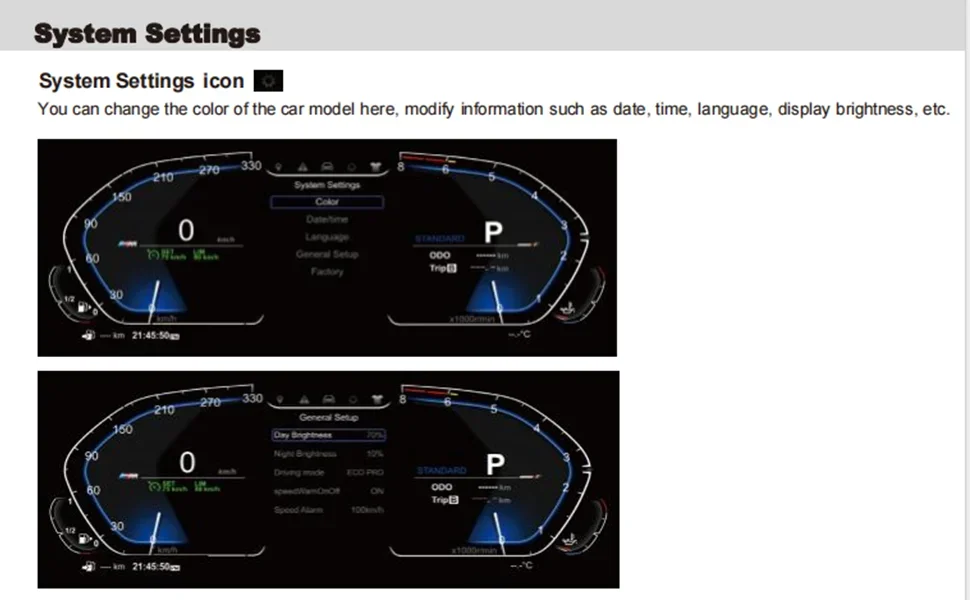
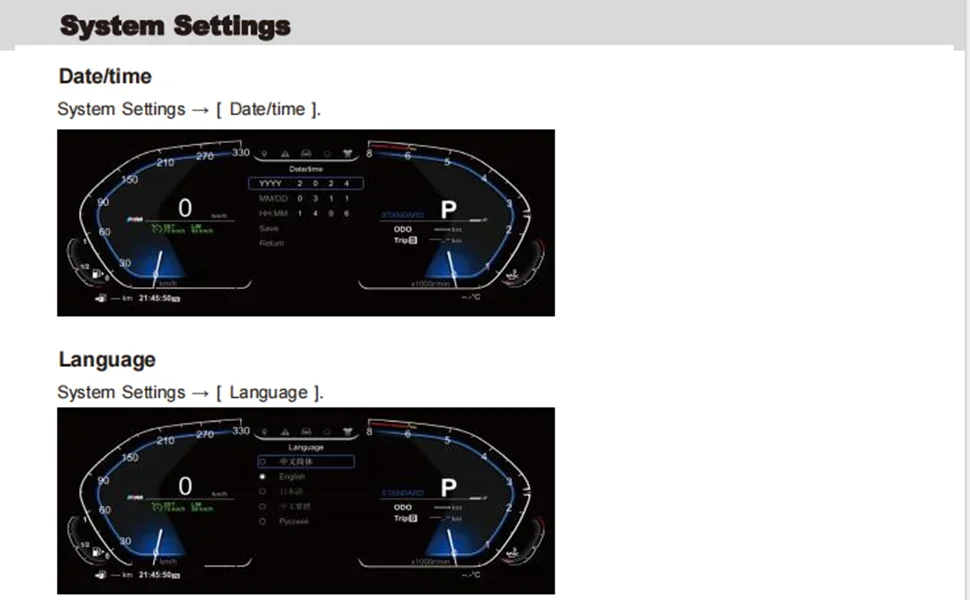
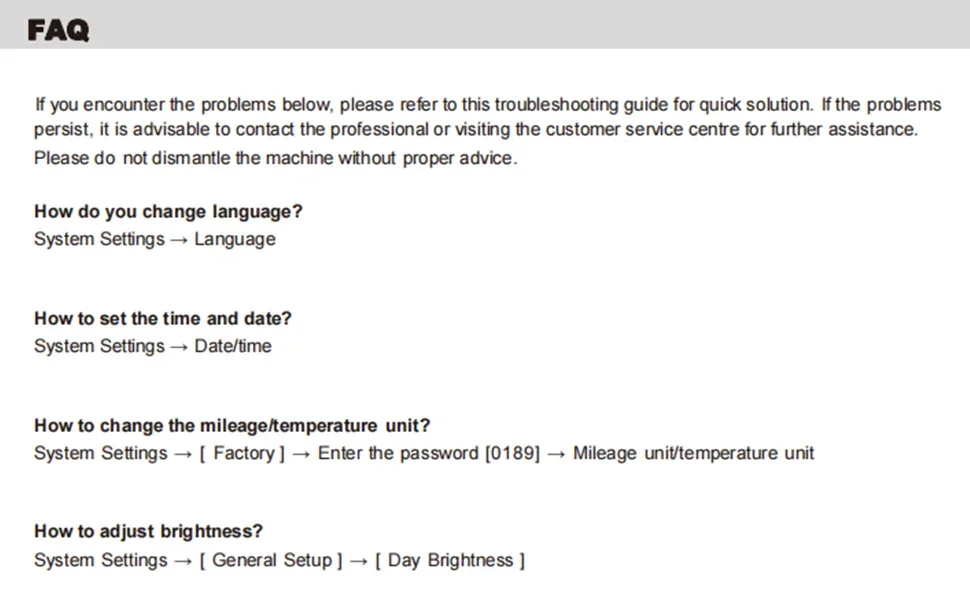
(1) Time and date setting
Operation Path:
Select [Settings] on the main interface→ and press and hold the [OK] button to enter the system settings.
Select [Date & Time]→ press and hold the [OK] button to enter edit mode.
Adjust the hour/minute, month/day parameters by using the upper and lower cursors→ and select [Save] to complete the setting.
(2) Language settings
Operation Path:
System Settings→ Select Language Settings→ Press and hold the OK button.
Select the desired language (such as Chinese, English, etc.) from the list→ Return to the main page to take effect.
2. Vehicle parameter settings
(1) The color of the model and model
Vehicle Settings:
System Settings→ Model Option Settings→ Select the corresponding model (e.g., F10/F18, etc.).
Car color settings:
[System Settings] → [Car Color] → Select the body color (e.g. black/white), and it will be displayed synchronously in real time.
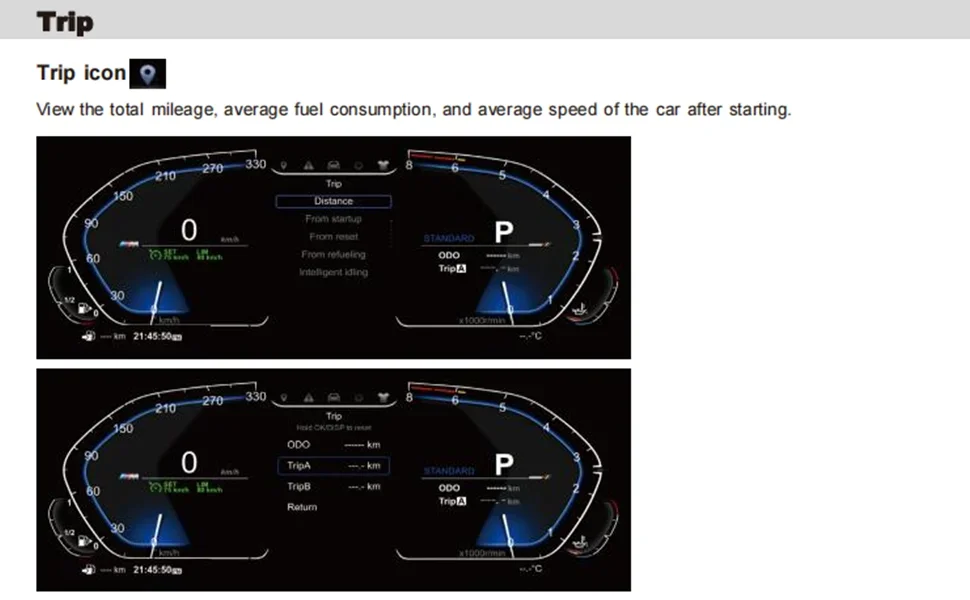
(2) Mileage and unit settings
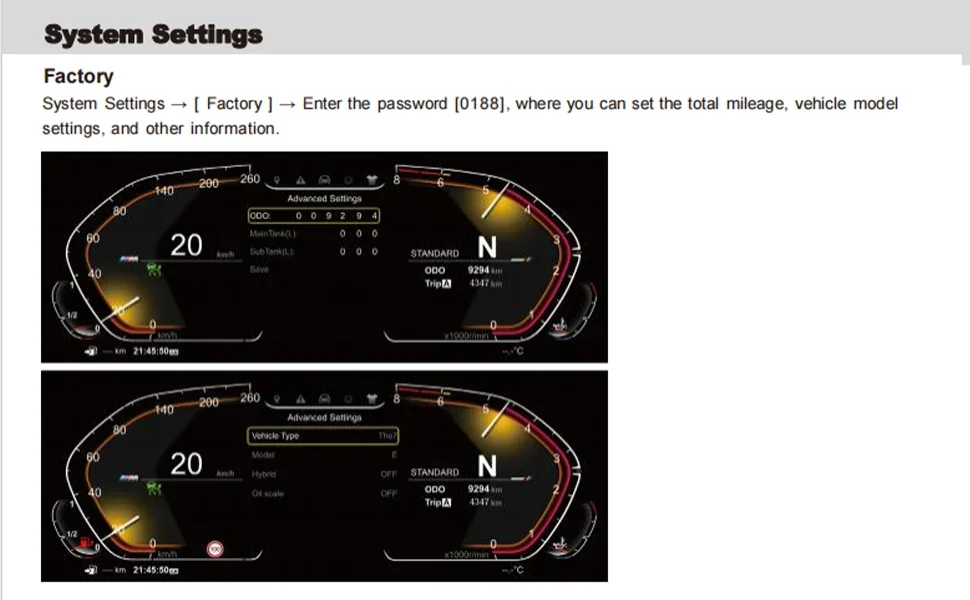
Total Mileage Calibration:
Factory Settings→ Enter a passcode (if required→ select ODO Settings→ Manually adjust the total mileage value.
Unit Switching:
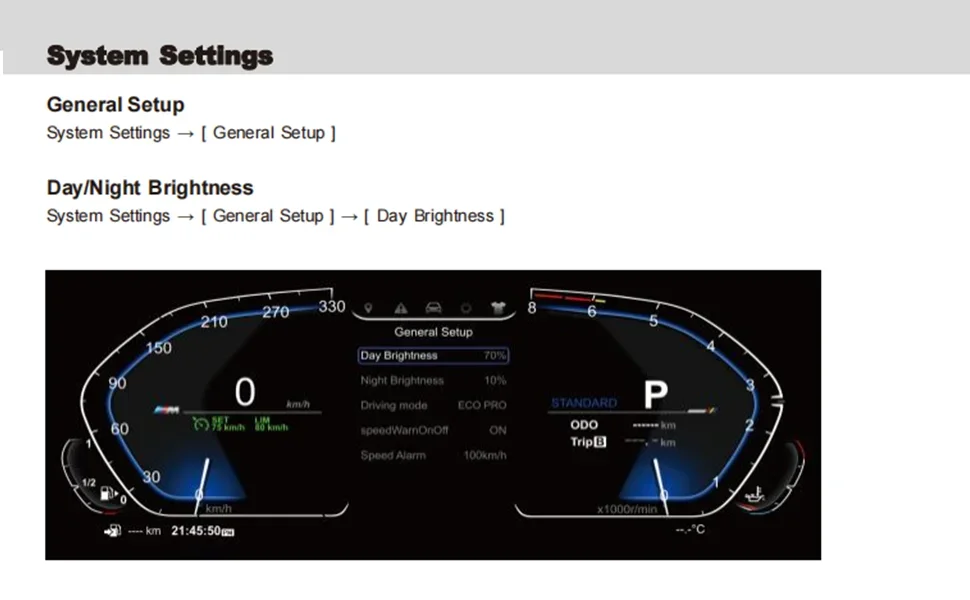
General Settings→ Mileage Units→ Select "km" or "mile";
The temperature unit is °C by default and no additional setting is required.
(3) Maximum speed display
Operation Path:
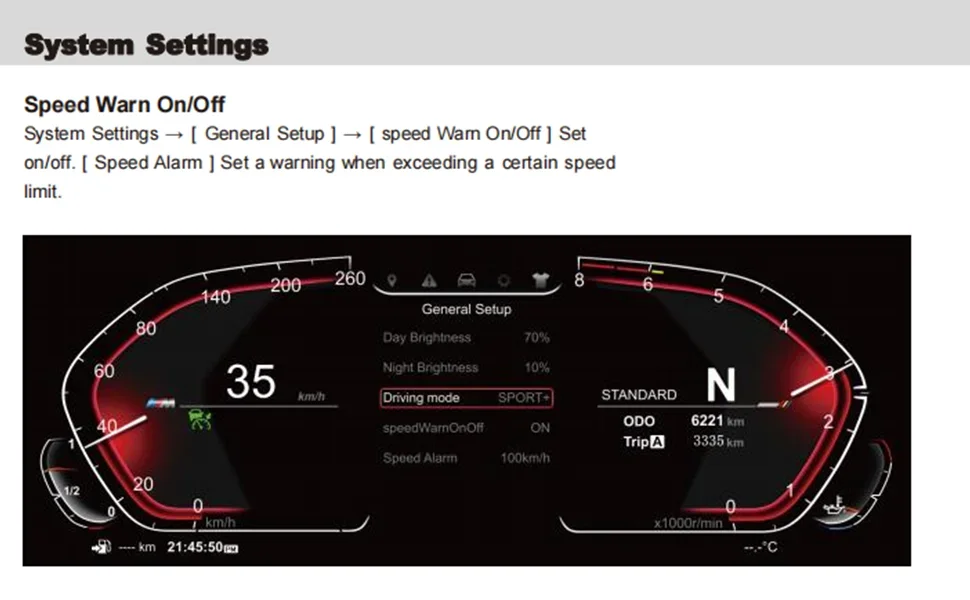
[General Settings] → [Maximum Speed Settings]→ Select the corresponding scale (e.g., 260km/h, 300km/h, etc.) to match the specifications of the original car dashboard.
3. Advanced function settings
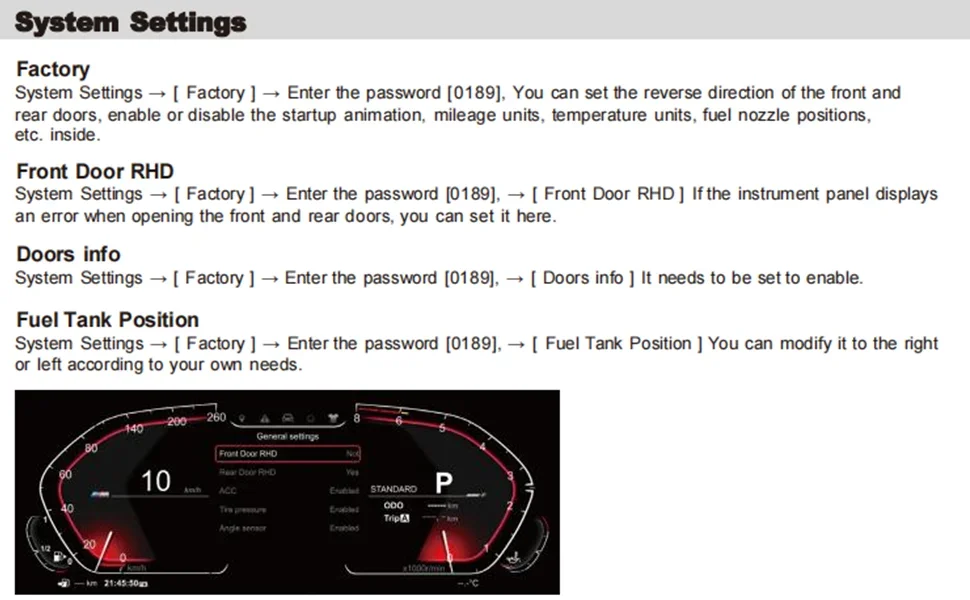
(1) Door display correction (right-hand drive model)
If the door status display is incorrect, go to [Factory Settings] → [Door Display Settings]→ toggle the "Front/Rear Door Replacement" switch to calibrate the sensor mapping.
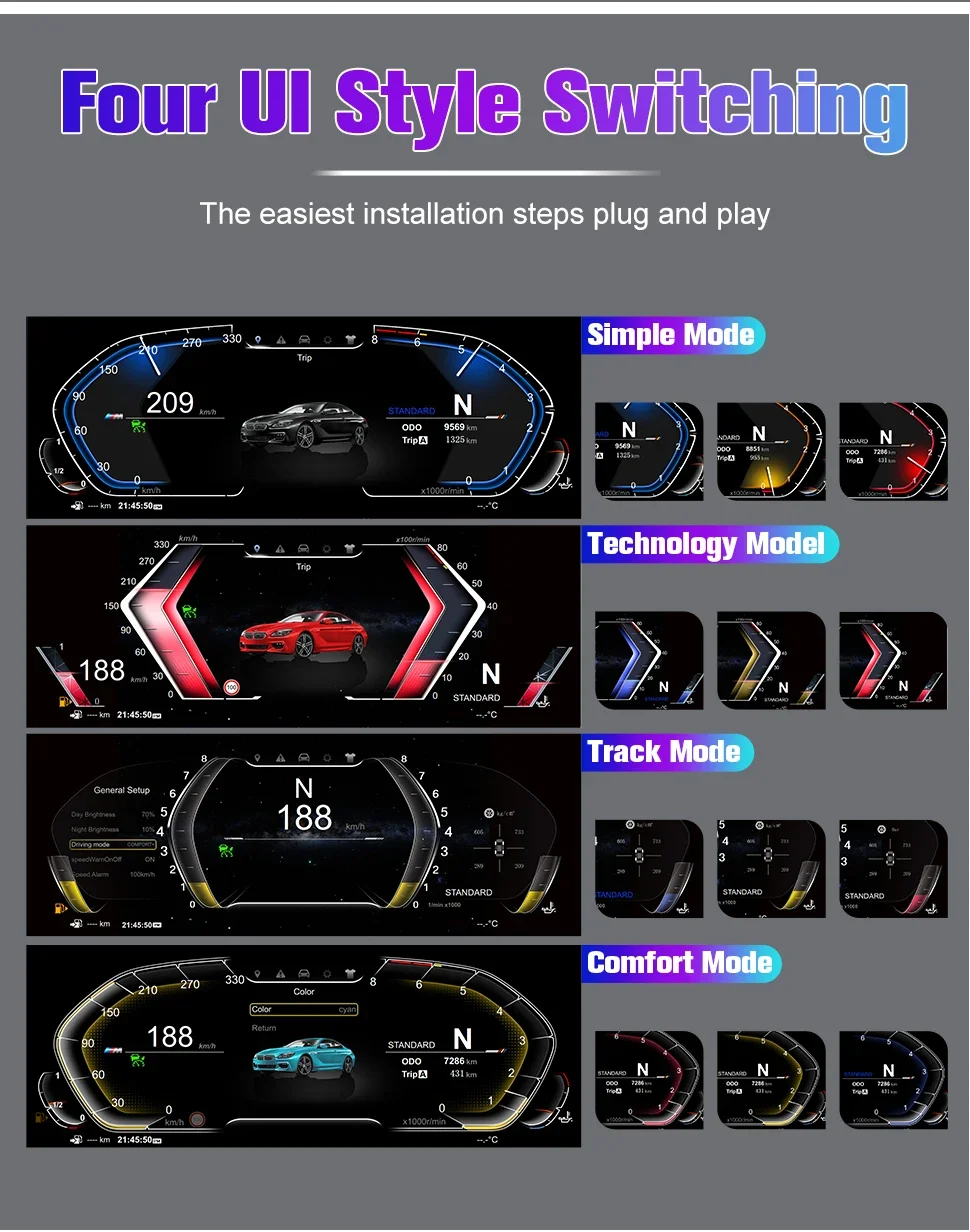
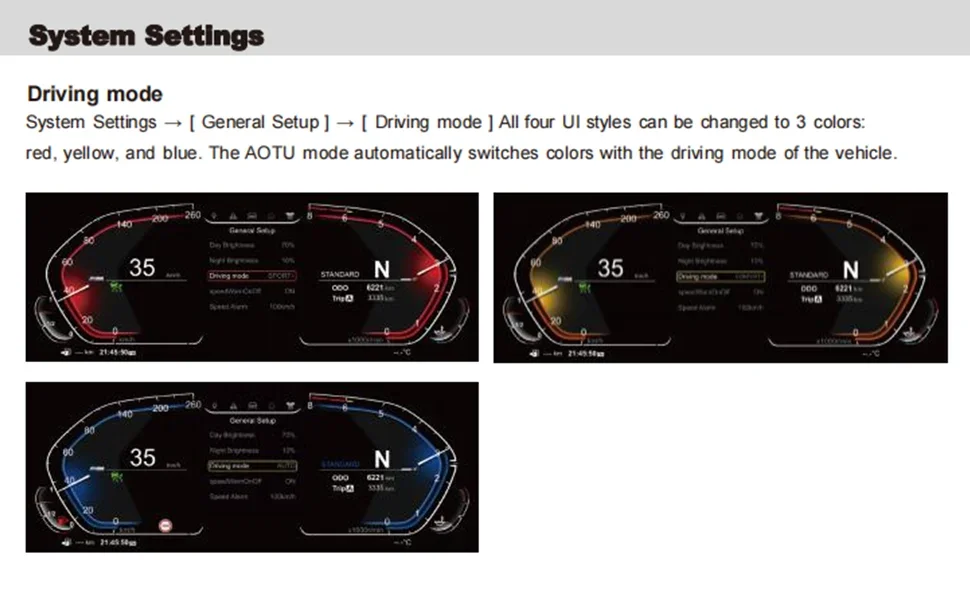
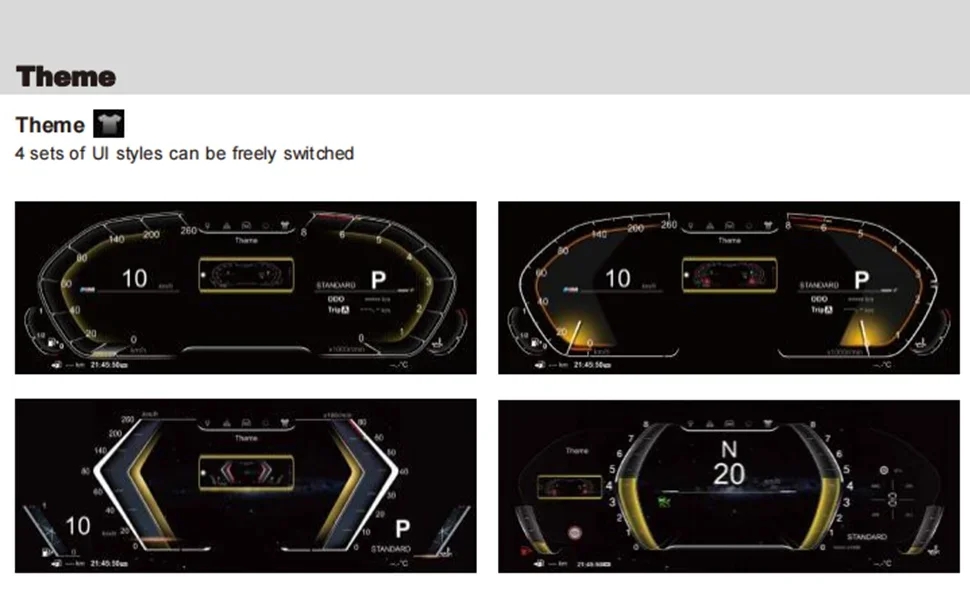
(2) UI theme change
Select [Style] on the main interface→ press and hold the [OK] button→ select a preset UI theme (such as classic, sports, etc.→ Return to the new interface of the app.
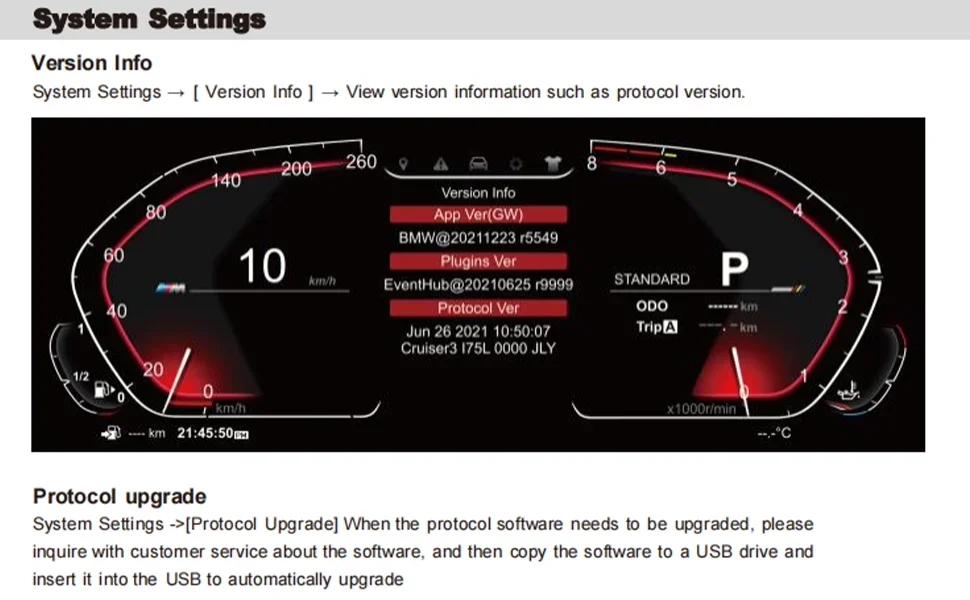
(3) View version information
System Settings → View Version Number, which displays the current firmware version (e.g. "BM@20241206 R31996") for software upgrade reference.
3. Precautions for operation
Harness safety: Avoid pulling the optical fiber cable during installation, ensure that the interface is free of dust or foreign objects, and prevent signal transmission failures.
Password permission: The factory settings need to enter the password (the default "0168" or refer to the manual), non-professionals should not modify the parameters at will.
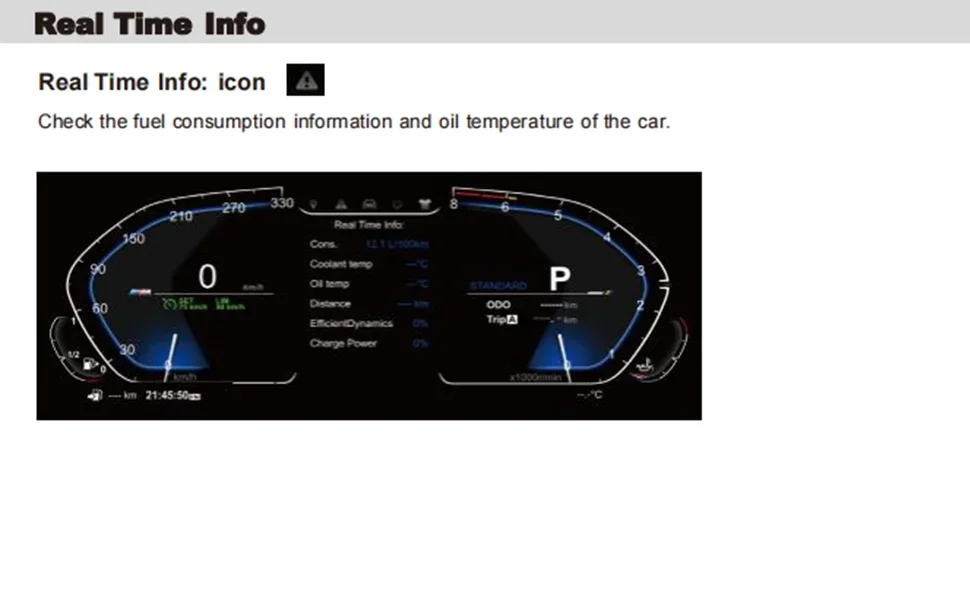
Commissioning and verification: After the installation is completed, start the functions of the vehicle inspection dashboard (such as speed, oil temperature, mileage display) to ensure synchronization with the original vehicle system.
Software upgrade: If you need to update the instrument firmware, connect to the computer through a USB cable and import the upgrade file provided by the official (you need to contact the after-sales service to obtain it).
4. Troubleshooting
Symptom Possible Cause Resolution
No display of the meter The power cord is not connected properly or short-circuited Check the connection of the plastic shell interface and measure the power supply voltage (12V)
The language display is out of order, and the system settings are not saved. Re-enter [Language Settings] and confirm the saving
Door status display error Sensor mapping is abnormal Replace the door option with [Door Display Settings].