The Matter Shop
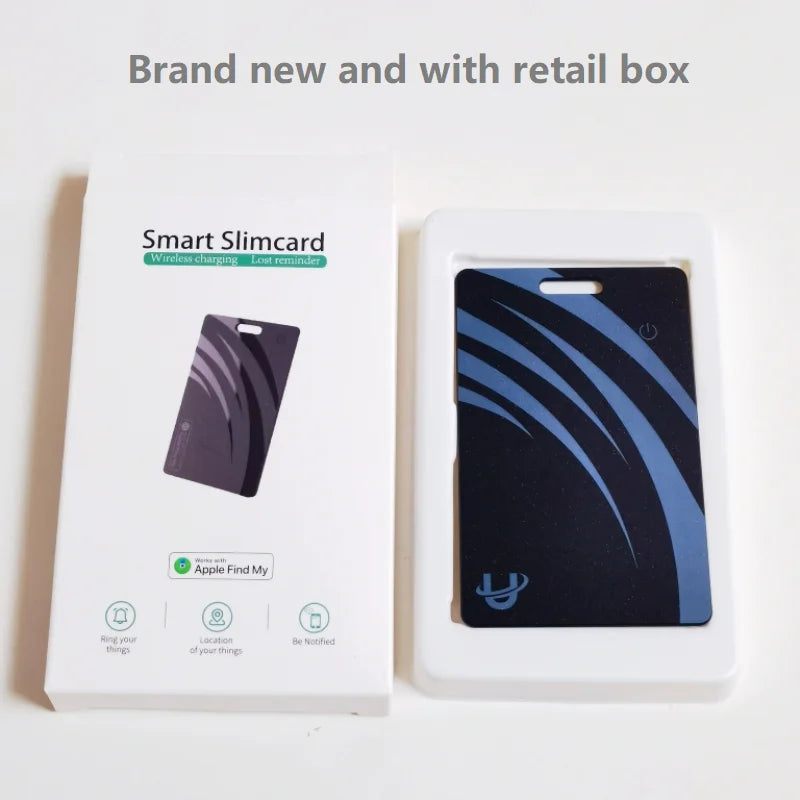
Smart wallet tracking card wireless charging GPS locator UltraSlim Antilost card
Smart wallet tracking card wireless charging GPS locator UltraSlim Antilost card
Couldn't load pickup availability
SPECIFICATIONS
Battery Included: Yes
Brand Name: PJPK
Hign-concerned Chemical: None
Origin: Mainland China
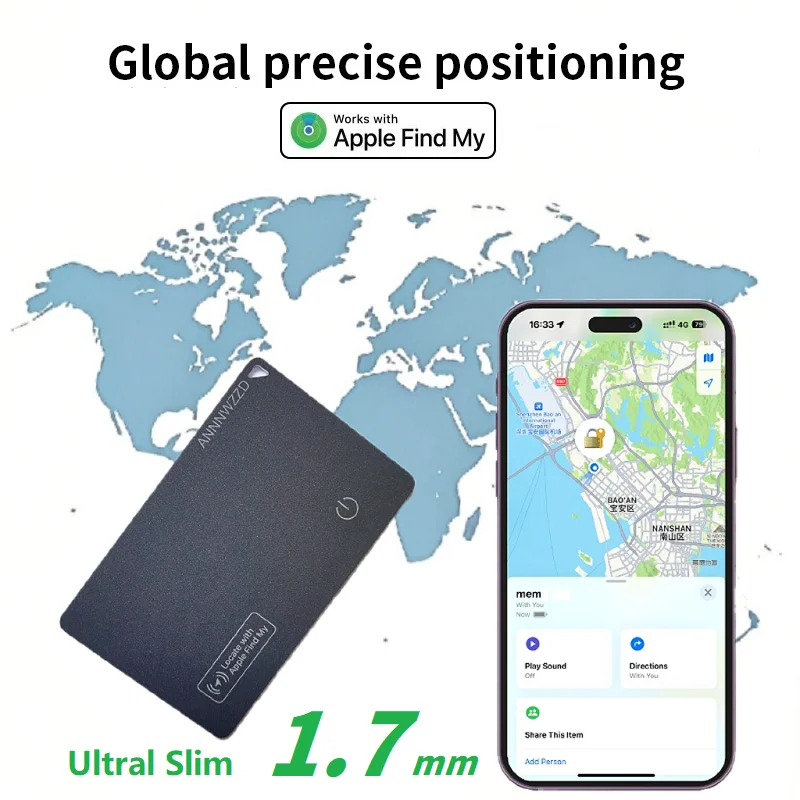
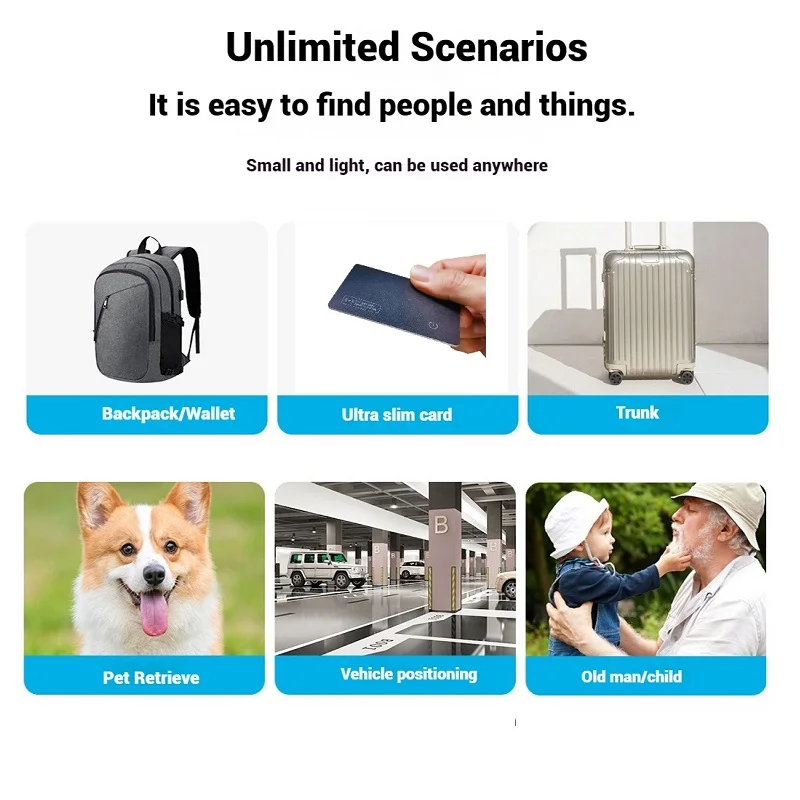
Smart wallet tracking card wireless charging GPS locator 1.7mm thin Ultra slim Anti-lost device works with apple find my airtag replacement.
Specification:
Material:PVC
Manufacturing technique:Cold pressure welding
Battery:Built-in Lithium Battery, 180mAh
Whether the battery can be replaced:No
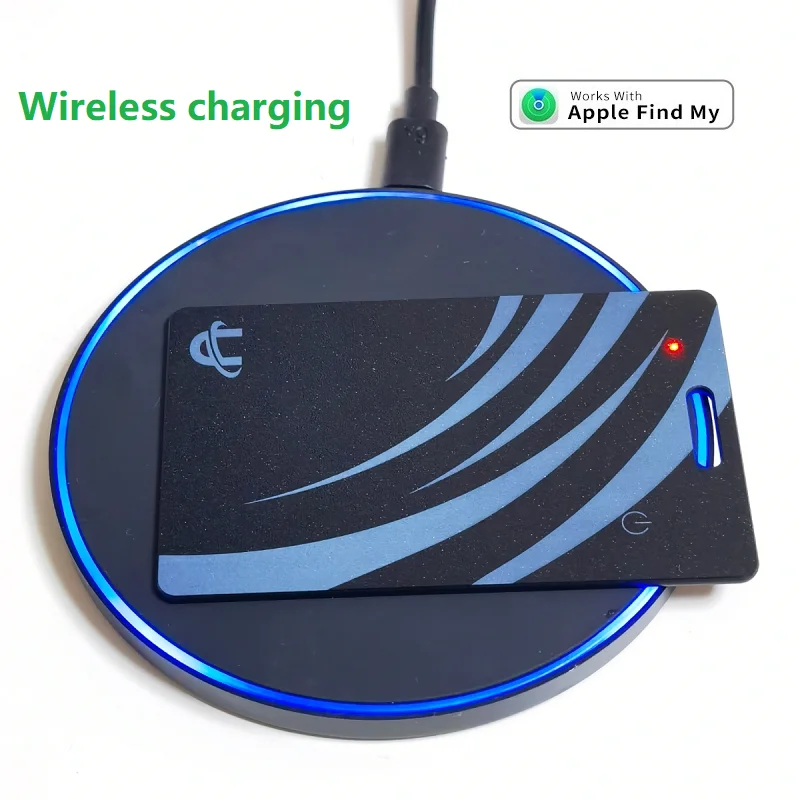
Charging method:Wireless charging
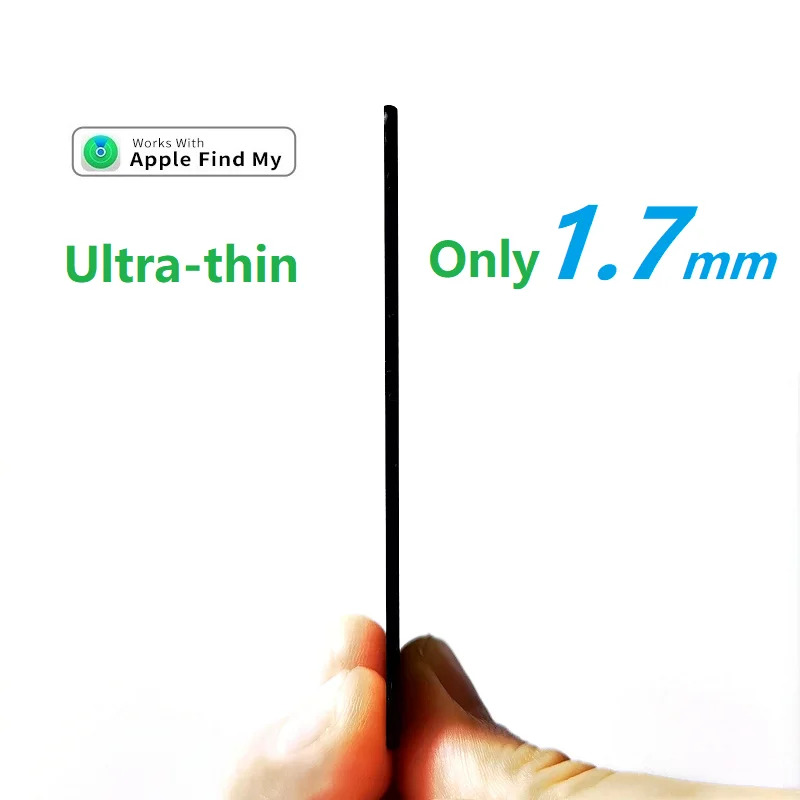
Size:L85.6*W54*T1.7mm
Volume:95-100dB
Weight:12.6g
Standby time:3-6 months
Working range:10~15 meters (indoor), 40~50 meters (open space)
Support system:iOS
APP:Apple Find My
Works with Apple Find My,Slim Design, Ultra-thin only 1.7mm

Wireless Charging
Works with Apple Find My
Slimcard Bluetooth finder
Thank you for choosing the Slimcard Bluetooth finder. Please read this manual carefully before use to avoid damage caused by improper use.
Quick instructions
1. Turn on the device
Press and hold the button for 3 seconds, and the device will beep and turn on. Double press the button, A chime will sound.
Note: To turn off, double-click the device first, then quickly press the button 5 times within 2 seconds, a long beep will sound.
2. Pair the device
- Open the Find My app.
- Hold the device close to your iPhone, tap the Items tab, tap+ and then Add Other Item.
- Tap Connect.
- Type a name for your device, select an emoji.
- Tap Agree to acknowledge that this item will be linked to your Apple ID.
- Tap Finish.
3. Enable Lost Mode
- Open the Find My app, tap the Items tab, then tap your item.
- Under Lost Mode, tap Enable.
- Read the instructions, tap Continue and enter a phone number or email address.
- Confirm the information, customize the lost message, and tap Activate to complete the setup.
4. Remove the device
- Open the Find My app, tap the Items tab, then tap your item.
- Tap Remove Item and then tap Remove to complete the operation.
Note: After removing the device in the app, the device will beep, it will not turn off and will be in the pairing mode. If there is no re - pairing within 10 minutes, the device will enter the sleep state, and it is difficult to pair at this time. If you need to pair the device, you need to click the device button twice quick, and then the device will beep, at this point, the device enters the pairing state and can be re - paired with the app.
Main Functions
1. Locate your item
If your missing item isn’t nearby, the Find My app can still help you track it down using the Find My network—hundreds of millions of iPhone, iPad, and Mac devices around the world. Nearby devices securely send the location of your missing device to iCloud, then you can see where it is in the Find My app. It’s all anonymous and encrypted to protect everyone’s privacy.
2. Play Sound
Open the Find My app, tap the Items tab, then tap your item. Click Play Sound, and the device will beep, so you can find the item easily.
3. Power on
Press and hold the button for 3 seconds, the device will be turned on.
4. Device status confirmation
Double-click the device button, the device will beep, indicating that the device is working. If the device does not ring, the device is off. Long press the button for 3 seconds to turn it on.
Note: Two different types of beep might appear depending on the device status.
(1) A light music will sound if the device is unpaired and ready to get paired.
(2) short 3 beeps will sound if the device is already paired.
5. The device enters the pairing state again
After removing the device in the app, the device will beep, it will not turn off and will be in the pairing mode. If there is no re - pairing within 10 minutes, the device will enter the sleep state, and it is difficult to pair at this time. If you need to pair the device, you need to click the device button twice quick, and then the device will beep, at this point, the device enters the pairing state and can be re - paired with the app.
Special Operations
1. Factory Reset
First, remove the item from Find My app then, after the device is powered on, double-click the device button. The device will beep. Long press the device button for five seconds, device beep, continue to press three seconds until the device beeps again. Release the button to complete factory reset. The device can now be paired.
2. Power off
When the device is on, press the device button 5 times in 2 seconds. The device will beep, the device will be powered off.
FAQ
1. When can the device be located?
When an item is separated from its owner for a period of time, it can be found by other Apple devices that are part of the Find My network, and the owner can start to get the location of the device.